- Business profile
- Greeting message
- Away message
- Quick replies
- Catalogue
Most business owners in Kenya already know WhatsApp is where their customers live. Fewer have actually opened the Tools menu on the WhatsApp Business app and set anything up. The free app has been sitting there the whole time, quietly capable of doing a fair amount of what people pay developers for, and almost nobody has switched on more than the basics.
This post is the how-to. Not the case for why WhatsApp matters, we've made that one already in WhatsApp is your front desk. This is the walkthrough: which settings to open, in what order, and what each one actually buys you. Then, at the end, how to tell when the free app has genuinely run out of road and the WhatsApp Business Platform, usually called the API (application programming interface, the version of WhatsApp that other software can connect to), is worth the cost of setting up.
The problem: the tools are free, but nobody shows you where they are
Open the WhatsApp Business app on a typical shop, salon, or agrovet's phone and you'll usually find it configured exactly like the personal app it replaced. No business profile filled in. No greeting message. No away message. No quick replies. No labels. A catalogue, if it exists at all, that hasn't been touched since it was first added.
None of this is because the owner doesn't care. It's because the app was downloaded in five minutes during a busy week, the basic chat worked fine, and there was never a reason to go looking for the rest. The features sit behind a Tools tab that most people never open, because nothing forces you to.
The cost shows up as repetition. The same delivery question typed out fresh, ten times a day, in slightly different words each time. A customer messaging at 9pm getting no reply and no idea when one is coming. A new enquiry sitting unlabelled in the same list as a supplier's delivery confirmation, both looking identical until you open them.
Why it stays this way
Setting up the free app takes an actual sitting, maybe forty minutes to an hour, and it competes with everything else a small business owner is doing that day. There's also no natural trigger. Nobody sends a notification saying "you have unused features." The app works well enough without them that the gap never becomes urgent, it just becomes normal.
The other reason is that most guidance about WhatsApp for business skips straight to automation, bots, and the paid Platform, as if the free app were a stepping stone not worth describing. In practice, the tools in the WhatsApp Business app, which Meta's own FAQ describes as free to use, solve the majority of the daily repetition on their own, and most businesses should exhaust them before spending anything.
A practical framework: five settings, one sitting
Everything below lives in one place, and there are two ways in. On Android, open WhatsApp Business, tap the three dots in the top right, then Business tools. On iPhone, tap the Tools tab at the bottom of the screen. Either way you land on the same set of settings: your business profile, greeting and away messages, quick replies, labels, and the catalogue.
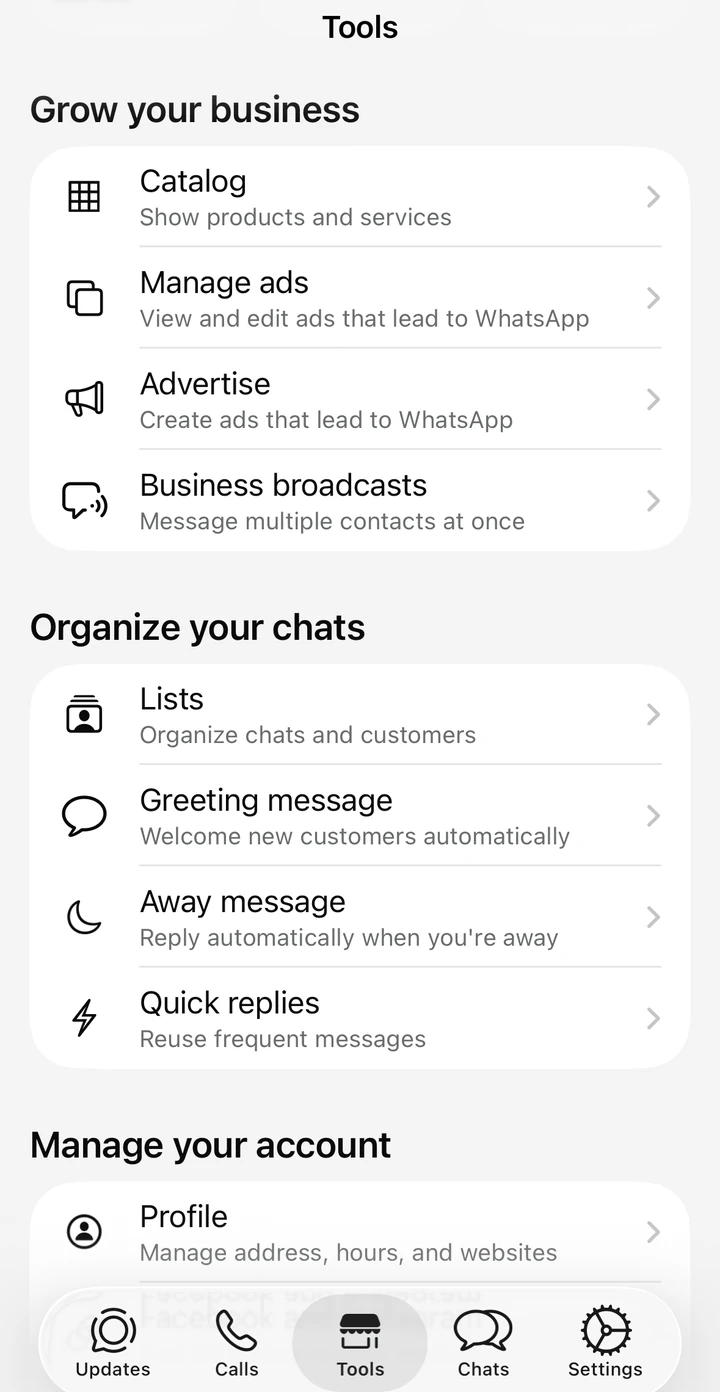
The screenshots throughout are from our own WhatsApp Business account, captured on iPhone in July 2026. Treat them as a picture of what each screen contains rather than a map of where every item sits. Android stacks the same settings in one scrolling list instead of the grouped cards above, and WhatsApp shifts things between versions on both. Go by the names and you'll find everything.
1. Business profile
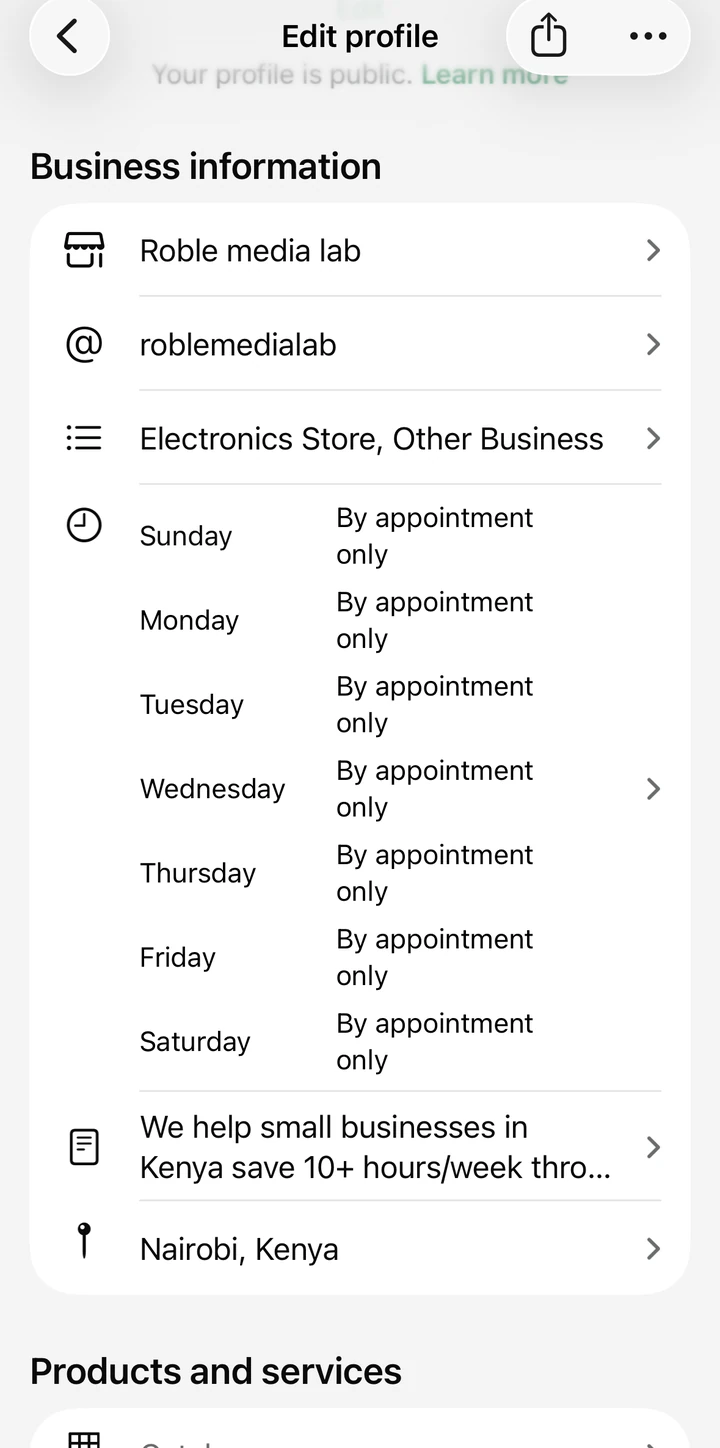
Under "Manage your account," tap Profile. Fill in your business name, category, description, address, and hours. This is what a customer sees the first time they tap your name, before you've replied to anything. A filled-in profile with your location and hours answers three common questions, "are you open," "where are you," "what do you sell," before the customer has to ask them.
2. Greeting message
Under "Organize your chats," tap Greeting message and switch it on. This message goes automatically to anyone messaging you for the first time, or after 14 days of no activity. State what you sell, your typical reply time, and one thing you want every new customer to know, an M-Pesa till number, a delivery area, whatever matters most. This single message removes the awkward first exchange where a new customer isn't sure if anyone is on the other end.
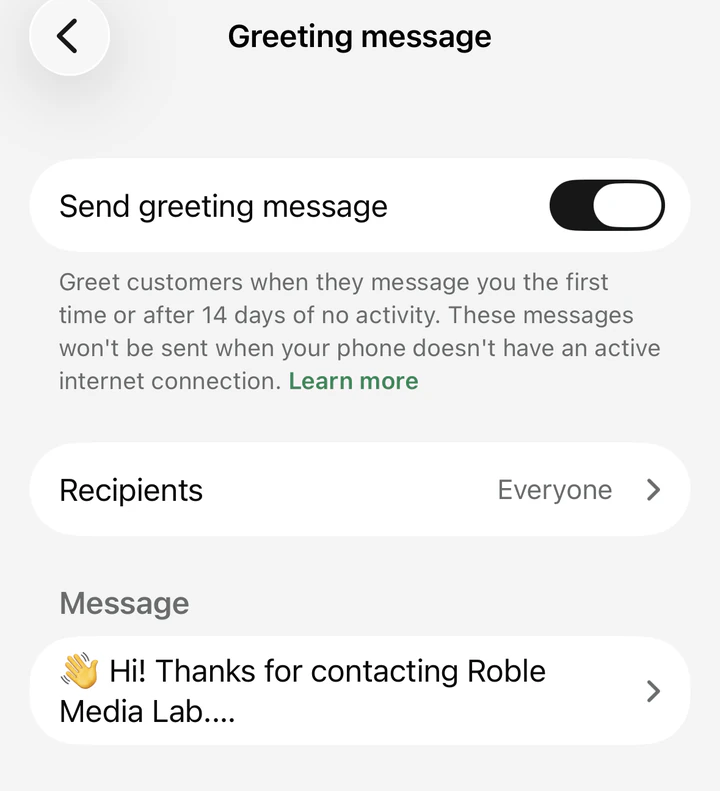
A greeting message does more work if it does something other than say hello. Ours offers a numbered menu, so the customer's first reply already tells us what they need:
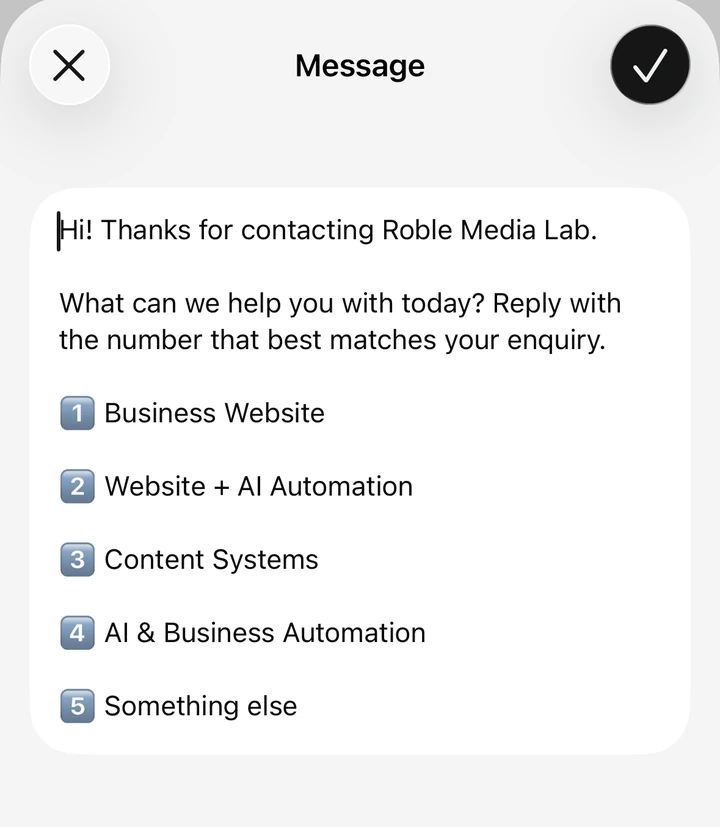
Greeting messages you can adapt. These are illustrative examples, not templates that will fit every business as written. Change the details to match what you actually do.
A shop or hardware store:
Karibu! Thanks for messaging [Business name]. We're open Mon to Sat, 8am to 6pm, and we reply within about an hour during those times. Tell us what you're looking for and we'll confirm price and availability. We're on [area], and we accept M-Pesa and cash.
A salon or barber:
Hi, thanks for messaging [Business name]. To book, send us the service you want and your preferred day and time, and we'll confirm the slot. Our price list is in our catalogue, tap the shop icon on our profile to see it. We're at [location], open Tue to Sun.
A food or delivery business:
Hello and welcome to [Business name]. Our menu is in our catalogue, tap the shop icon on our profile. To order, send the item, quantity, and your location. Delivery within [area] is [amount], and we take M-Pesa on till [number]. We deliver 10am to 9pm daily.
A service business taking enquiries:
Hi, thanks for contacting [Business name]. What can we help you with today? Reply with the number that best matches your enquiry: 1 for [service], 2 for [service], 3 for [service], 4 for something else. We reply within one working day.
3. Away message
Still under "Organize your chats," tap Away message. Set your schedule, and write a message that goes out automatically to anyone messaging outside your hours. The content matters less than the fact that it exists at all. A customer who gets an instant, honest answer is far more patient than one staring at a single grey tick.
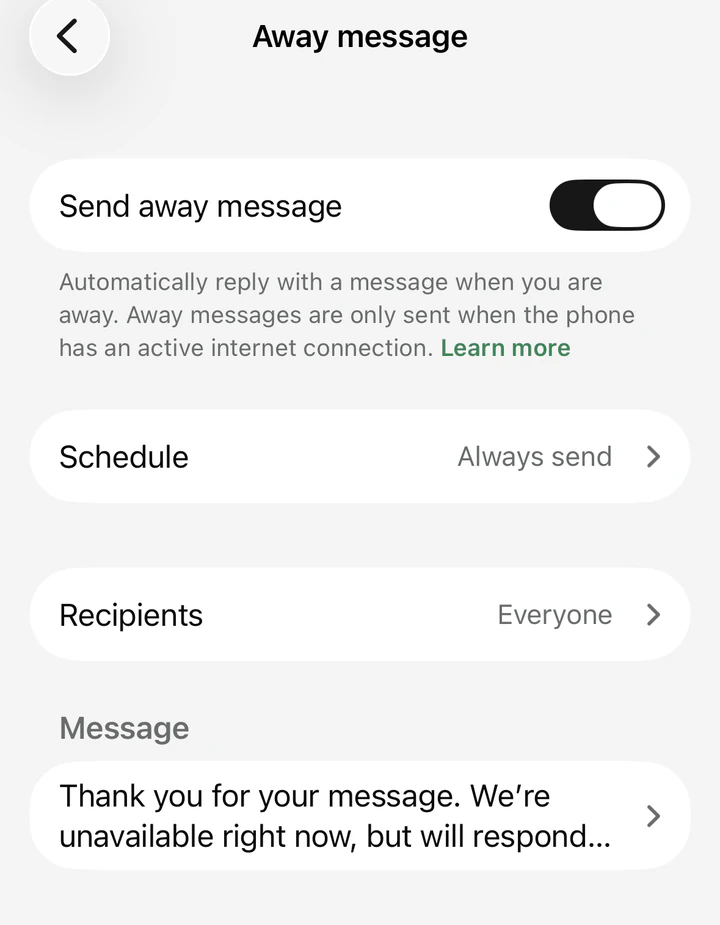
Away messages you can adapt, again illustrative:
Thanks for your message. We're closed right now and will reply when we open at 8am. If it's urgent, call [number].
Thank you for your message. We're unavailable at the moment but will respond within [time]. Our opening hours are [hours].
Asante for reaching out. We've received your message and will get back to you first thing tomorrow morning. For orders, send the item and your location and we'll confirm as soon as we open.
4. Quick replies
This is the one that saves the most time day to day. Under "Organize your chats," tap Quick replies, then the plus button to add one. Write a short answer for each of your most common questions and give each a shortcut. Typing the shortcut pulls up your full, current answer instead of you retyping it, slightly differently, for the fortieth time.
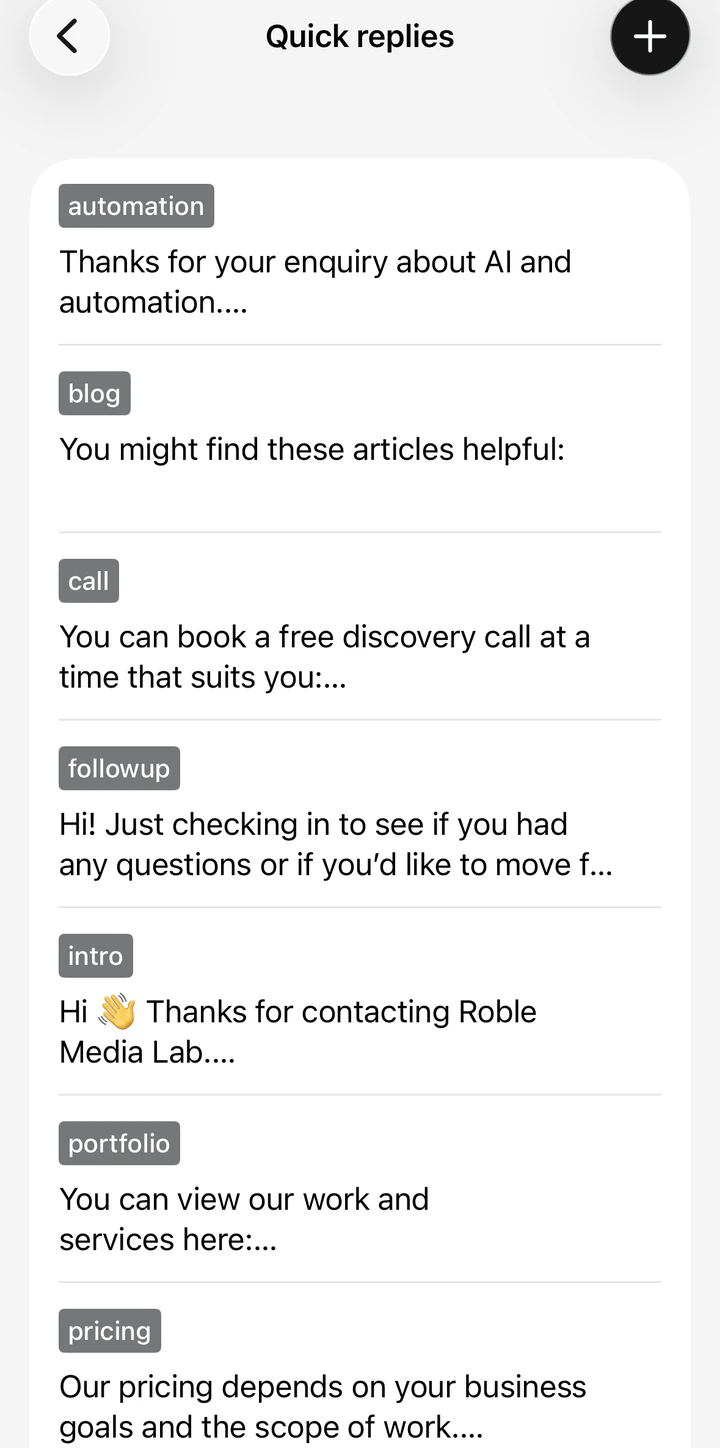
Spend ten minutes actually scrolling back through last month's chats to find your real top questions rather than guessing. The answers are usually more repetitive than owners expect. A starting set that suits most businesses, adapt the wording:
price for cost questions:
Our prices start from [amount] for [item or service]. Send us what you need and we'll confirm the exact price.
delivery for delivery cost and area:
We deliver within [area] for [amount], same day if you order before [time]. Outside that, delivery is [amount].
location for where you are:
We're at [building, road, area]. Here's our pin: [share your location]. Parking is [detail].
hours for when you're open:
We're open [days], [times]. Closed [day].
pay for payment methods:
We accept M-Pesa on till [number], bank transfer, and cash on delivery. Please send the confirmation message once you've paid.
stock for availability:
Let me check that for you and come back within [time]. In the meantime, our full range is in our catalogue.
followup for chasing a quiet enquiry:
Hi, just checking in to see if you had any questions, or if you'd like to go ahead.
Using them in a chat. This is the part the setup screens never explain. Once your quick replies are saved, open any customer conversation, tap the message box, and type a forward slash, /. A list of your saved replies appears above the keyboard. Either keep typing the shortcut to narrow the list, or tap the one you want. The full message drops into the box, and you can edit it before sending, which is worth doing when a customer needs a detail your saved version doesn't cover.
That last point matters more than it sounds. A quick reply is a starting draft, not a locked script. Adding the customer's name or the specific item they asked about takes three seconds and keeps the reply from feeling like a machine answered.
Two rules keep quick replies useful. Keep the shortcut short and obvious, so you can type it from memory mid-conversation. And review the text monthly, because a saved reply quoting last quarter's price is worse than typing the answer fresh, since it looks official.
5. Lists and catalogue
Lists, called Labels on Android and in older versions, let you tag a conversation, New enquiry, Pending payment, Order placed, Complete, so a chat list of a hundred conversations becomes something you can actually scan and act on. Use three or four, no more, or the system becomes its own admin burden.
The catalogue lets customers browse what you sell inside WhatsApp itself, with photos and prices, instead of you sending the same fifteen photos every time someone asks "what do you have?" For a shop, salon, or food business, building this out properly is often the single highest-value item on this list. Every product needs a name, price, and one clear photo, and it's worth doing ten items well rather than forty badly.
If your screen looks different
Every setting in this guide exists on both Android and iPhone. What changes is what things are called and how they're arranged.
Labels are the clearest example. Android and older versions call them Labels, the current iPhone app calls them Lists, and the feature works the same either way. Layout differs too, with everything under Business tools on Android sitting in one scrolling list rather than the grouped cards shown earlier.
WhatsApp also reorganises this menu fairly often, on both platforms. So if what you're looking at matches neither description, update the app first, then hunt for the wording rather than the position. The names have stayed far more stable than the places they live.
What this looks like in practice
A few illustrative examples of what a completed setup changes day to day, not claims about any specific business's results.
A mama mboga selling produce for delivery might set quick replies for delivery zones and M-Pesa till number, add a catalogue of what's in season with today's prices, and use three labels to track orders from "placed" to "delivered." The phone stops being the bottleneck between a customer and a bag of vegetables.
A salon might rely on the greeting message to state hours and location upfront, then use quick replies for the price list and an away message that redirects after-hours enquiries to book first thing in the morning. The owner stops answering "how much is a blow-dry" between clients all day.
An agrovet might set up a catalogue of common products with prices, quick replies for "do you have X in stock," and labels separating retail customers from supplier chats, which currently sit in the same undifferentiated list.
When you've outgrown the free app
The free app has real limits, and they show up as specific, nameable frustrations rather than a general feeling that "we should upgrade."
More than one person needs to answer chats, and right now that means physically passing a phone around. You want conversation history connected to customer records, not trapped inside a device that can be lost or replaced. You want a customer to check a price, place an order, or book a slot without a person typing every step of the reply. You're sending the same order-status update to dozens of customers, one at a time, by hand.
Those are the signals that it's time to look at the WhatsApp Business Platform, the API. It supports a shared inbox so a team can answer from one place, connects WhatsApp to the rest of your business systems, and can run automated flows: answering routine questions, collecting order details, confirming bookings, sending payment and delivery updates. It also comes with real setup and running costs, and decisions about message templates and conversation design that are worth getting help with rather than guessing at.
If nothing on that list matches your business yet, the free app is not a placeholder you've settled for. It's the right tool for where you are.
Common mistakes to avoid
Writing quick replies you never update. A shortcut with last quarter's delivery price is worse than typing the answer fresh, because it looks official. Review them monthly.
Turning on the away message and forgetting the actual hours. If your stated hours don't match when you really reply, the message trains customers to distrust it, which defeats the point.
Adding too many labels. More than four or five, and sorting chats becomes its own chore. Start small and only add a label once you've genuinely needed it twice.
Ignoring consent and data. Customer chats are personal data under Kenya's Data Protection Act, enforced by the Office of the Data Protection Commissioner (ODPC). Collect what you need for the conversation, use it for what the customer expects, and don't fold numbers into a broadcast list they never agreed to join.
Jumping straight to the Platform. If the free app's features would solve today's problem, set those up first. You'll know exactly what you need from the paid stage, instead of guessing at it upfront.
Your next steps
- Open WhatsApp Business, go to Business tools on Android or the Tools tab on iPhone, and fill in your business profile this week.
- Scroll back through a month of real chats and write down your five most repeated questions.
- Set up a greeting message and an away message that match your actual hours.
- Create a quick reply for each of those five questions, and build out your catalogue if you sell physical products.
- Use labels for one full week, then look honestly at what still hurts. If it's shared access, integration with your other systems, or hands-free flows, that's your sign the Platform stage is worth a conversation.
Where we can help
business systems is one of our core services, and it starts exactly where this post does: getting the free foundations right before spending anything, then building out the Platform stage only once it's genuinely earned. If you want the fuller case for why this channel deserves the attention, WhatsApp is your front desk covers the diagnosis this post assumes.
If you'd rather have someone sit down with your actual chat history and set this up properly, book a 30-minute discovery call and we'll go through it together. No pressure, no hype.